Redtree IT

Microsoft Edge

Uncategorised

Microsoft’s browser takes back the Edge with streamlined settings

October 28th 2024 By Matthew Phillips Microsoft’s browser takes back the Edge with streamlined settings If you’ve ever tried to tweak a setting in Microsoft Edge and found yourself lost in all the options, this one’s for you. Microsoft is cleaning up the Settings page, so you’ll no longer need to dig around in endless menus to find the setting you need. What’s changing? You’ll see a new quick access panel under the main Settings menu, giving you shortcuts to the features you’re likely to use the most. Settings will also be split into smaller submenus, like “System and Performance” and “Appearance”, making it easier to find exactly what you want. Better yet? The sub-menus will have their own quick access shortcuts too. https://player.vimeo.com/video/1020213261? The improvements will give Google Chrome (which has been praised for its well-organised settings) a run for its money. So if your team doesn’t already use Edge as their default browser, it’s a great time to give it another try. Microsoft is currently testing the update, and it should start rolling out soon. Once it does, you can expect much smoother navigation. If you need help making the most of the new features in your business, we can help. Get in touch. Published with permission from Your Tech Updates.

Uncategorised

A free tool for more polished communication
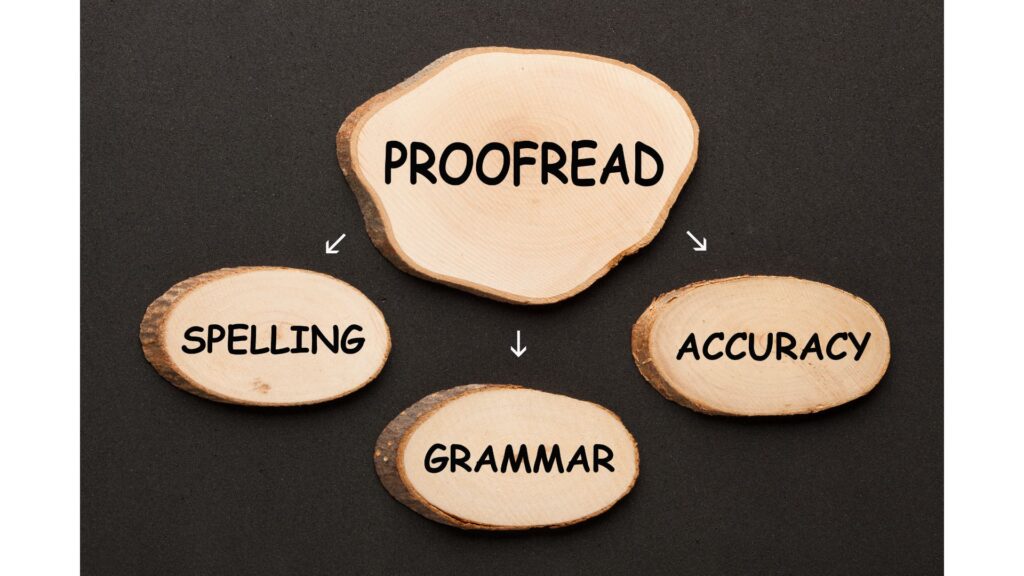
October 7th 2024 By Matthew Phillips A free tool for more polished communication Whether you’re drafting emails, writing reports, or creating presentations, spelling mistakes and typos can easily be missed. This means you run the risk of looking unprofessional, especially when communicating with clients or business partners. Here’s the good news: Windows 11 comes with built-in spell check and autocorrect tools that can put an end to embarrassing spelling mistakes. These tools are easy to set up. And once that’s done, you won’t need any extra software to make sure your text always looks clear and professional. Want to know how to use them? First, open Windows Settings. Then select Time & Language and click on the Typing page. From there, you can turn on options like ‘Autocorrect misspelled words’ and ‘Highlight misspelled words’. These features will work across most apps, fixing errors and flagging possible spelling mistakes. You can even get word predictions as you type by enabling text suggestions. Does your business run in multiple languages? Be sure to switch on the ‘Multilingual text suggestions’ feature. This will bring up word suggestions in whatever language you are using. https://player.vimeo.com/video/1012849603? While the spelling tools built into Windows 11 will work across most apps once enabled, some apps (like Notepad and Outlook) need a little extra set up. For example, in Notepad, you’ll need to click the gear icon for settings to switch on the spell check feature. Your team probably spends a lot of time in Outlook sending emails, so it’s well worth switching on grammar tools here. Go to Editor Settings under the Options tab. From there, you can turn on features like autocorrect, text predictions, and even tone adjustment. And if your team uses Microsoft Edge for browsing, you can set up spell check and grammar tools there as well. Just head to Settings, click on Languages, and turn on the grammar and spell check options. By setting up spell check and autocorrect in Windows 11, you’re not just avoiding small mistakes – you’re helping your business run more smoothly. If you need a hand with this or want more advice on how to save time in your business, we can help. Get in touch. Published with permission from Your Tech Updates.

Uncategorised

Lost for words? Draft with Copilot can help

August 26th 2024 By Matthew Phillips Lost for words? Draft with Copilot can help There’s an exciting new feature coming to Microsoft’s Edge browser that’s going to make your life – and your employees’ lives – a whole lot easier. ‘Draft with Copilot’ is an AI-powered tool that can instantly write text on any topic you need. When you’re in Edge and you find yourself staring at an empty text field (like the body of an email or a comment box), just right-click. You’ll see an option to ‘Draft with Copilot.’ Click on it, and a window will pop up. You just enter the subject or topic you need text for, hit ‘Generate,’ and watch Copilot do its thing. In a few moments, you’ll have a piece of text on the topic you specified. You can then change the tone and length of the generated text to suit your style. Want it to be more formal or casual? Need it longer or shorter? No problem. We all know time is money, ’Draft with Copilot’ can help save you both. Imagine how much time your team spend on writing everyday text. With Copilot, drafting a quick email or coming up with a social media update becomes easier. And Copilot not only helps you write faster but also makes sure the text is grammatically correct and well-structured. This is especially helpful if you’re writing in a language that’s not your native one. Right now, this feature is only available in US English, but Microsoft is working on expanding it to more languages. One warning: It’s important to review what it produces. Critics of AI-generated text sometimes say it can feel a bit generic. You might want to add a personal touch or specific details to make it more engaging for your audience. https://player.vimeo.com/video/995458071? This feature is currently in the Edge Canary preview build, which means it’s still being fine-tuned. Microsoft is steadily integrating Copilot into more Windows apps, making these AI tools more accessible and versatile across different platforms. It’s clear that the future holds even more convenient AI-assisted features that will make our digital lives easier. Not tried Copilot in your business yet? We can help you get started. Get in touch Published with permission from Your Tech Updates.

Uncategorised

Be more productive with these Microsoft Edge features

April 15th 2024 By Matthew Phillips Be more productive with these Microsoft Edge features Improving productivity is a never-ending mission for most business owners and managers. Whether it’s speeding up tasks or improving communication, every little helps. So it’s crucial to make the most of the tools you already have. And while you might think of your web browser as just a means to access the internet, it can be so much more than that. Especially if you use Microsoft Edge in Windows 11. It has loads of features that can help supercharge your productivity. https://player.vimeo.com/video/926233554? Here are five of our favourites. Split Screen for multitasking Multitasking is a skill every business owner needs, and Microsoft Edge’s split screen feature makes it easier than ever. Whether you’re comparing web pages, researching multiple topics, or simply keeping an eye on different sites simultaneously, split screen lets you view two pages side-by-side within the same tab. It’s like having two windows open at once, but without the clutter. Vertical Tabs for streamlined navigation Too many tabs? Yeah… we understand that. Microsoft Edge’s vertical tabs offer a fresh perspective on tab management. By stacking tabs vertically along the side of the browser window, you can easily navigate between open tabs and access essential controls like close and mute. Workspaces for seamless collaboration Collaboration is key in any business, and Microsoft Edge’s Workspaces feature makes it easier than ever to work well with colleagues or clients. Create a workspace with a collection of open tabs, then share it with others via a simple link. It means they can open multiple tabs with one click. It’s perfect for brainstorming sessions, project management, or team presentations. Collections for organised research Gathering information from the web is a common task. Microsoft Edge’s Collections feature makes this easier, allowing you to easily save and organise text, images, and videos from web pages into custom collections. Stay organised, focused, and productive.       5: Immersive Reader for distraction-free reading When you need to focus on reading an article or document online, distractions on the page can be a pain. Microsoft Edge’s Immersive Reader feature provides a clutter-free reading experience by removing ads, links, and other interruptions. Customise the text size, spacing, and colour scheme to suit your preferences, and even have the content read aloud for hands-free reading. If your business doesn’t already use Microsoft Edge on Windows 11, this could be the perfect time to switch. Can we help you move over? Get in touch. Published with permission from Your Tech Updates.

Uncategorised

This new search feature in Edge is a revolution

February 5th 2024 By Matthew Phillips This new search feature in Edge is a revolution Microsoft’s at it again, presenting us with new features week after week. This time it’s all about making our online searches smarter and more efficient in the Edge browser. If you’ve been on the fence about switching to it, this might just be the push you need. Edge has a cool new feature, as revealed by Mikhail Parakhin, CEO of Advertising and Web Services at Microsoft. Imagine this: you’re searching for something important for your business – maybe it’s market research or the latest trends in your industry. You type in your query, and you get results from not one but two search engines at the same time. How does it work? Let’s break it down. Say Bing is your default search engine. Now, when you hit the search icon, you won’t just see Bing’s results, you’ll also get a peek at what Google (or your alternative search engine of choice) has to offer. This dual view works both ways, ensuring you’re not missing out on any valuable information. In business, information is gold. Having access to comprehensive search results means you’re more likely to find the most relevant, diverse, and valuable information. No more switching between browsers or tabs to compare search results – Edge now does that for you in a single view. https://player.vimeo.com/video/904514472 Some people have raised concerns about potential visual clutter from combining two engines’ results. It’s a valid point, and thankfully, Microsoft is listening. Parakhin hinted at the possibility of customising your ‘backup’ search engine to streamline the experience. While the sidebar’s width is currently fixed, there’s an openness to explore deeper customisation options soon. This feature in Edge is quite a lure. It simplifies the task of searching, making research quicker and more effective. You get the best of both worlds without the hassle of juggling multiple windows. And it’s more than just a convenience; it’s a step towards smarter, more efficient browsing, especially for us in the business community. It demonstrates Microsoft’s commitment to improving user experience and staying competitive in the browser game. For current Edge fans, this is an exciting upgrade. For everyone else, it’s a compelling reason to consider making the switch. Need a hand finding time-saving tools for your business? Get in touch. Published with permission from Your Tech Updates.

Scroll to Top